Buildings07/07/2026
One staff list for access control, canteen and parking
Three systems with three staff lists cause many discrepancies. Sol26 Access, Sol26 Canteen and Sol26 Parking share one list on the same platform.
Read moreBuildings
Published 25/08/2026
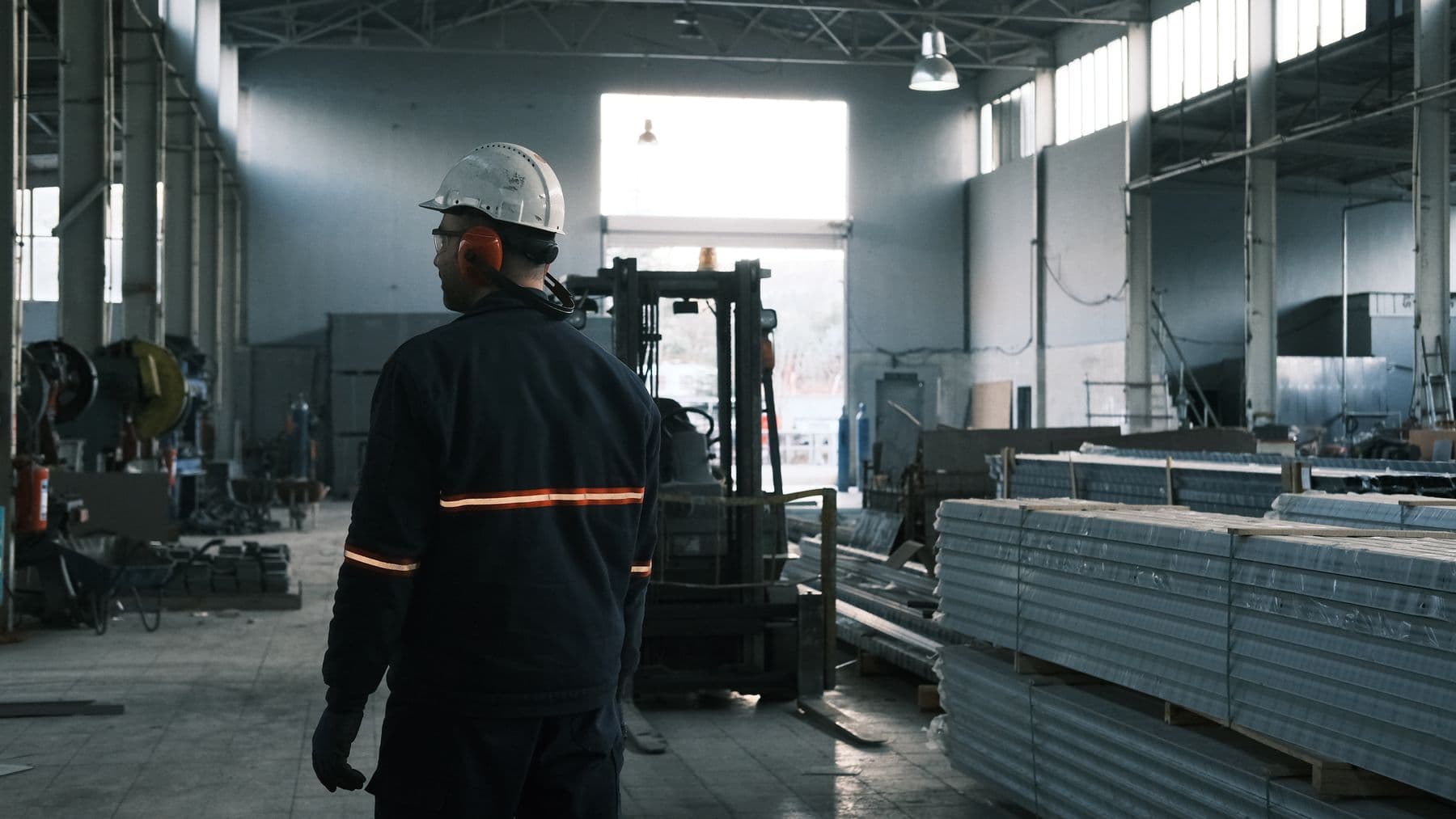
A guard's work centres on the passes that do not match. This post lists what the guard house screen should show and how to handle each type of exception at the gate.
When the system runs normally, devices recognise users, barriers open and records are saved without the guard stepping in. The guard's work centres on the passes that do not match, and how well they are handled depends on what the guard house screen shows.
This post lists the information the screen should display, the common exceptions at the gate and how Sol26 Access and Sol26 Parking software help guards deal with them.
In the Sol26 reference gate layout, the guard house has a 40 inch LCD screen showing results from each lane. The station software displays the following groups of information.
On exit, the screen shows the image and plate captured at entry so the guard can compare them with the vehicle in the lane.
The plate on exit does not match the entry record. The software allows manual handling, a plate search inside the car park when there is no automatic match, and approval or rejection of the exit case by case.
A vehicle is leaving but the system has no entry record for it. The software raises an alert so the guard can check before letting it out.
The system detects when a plate already inside is recorded entering again, and alerts when the number of vehicles exceeds the permitted limit.
The Face ID terminal distinguishes registered staff from strangers. With a false rejection rate of 4% in the terminal specification, some passes by genuine staff will not be accepted at once and need a retry or verification by the guard.
The software alerts when a camera fails or cannot recognise a plate, and monitors the operating status of Face ID terminals. The guard switches to manual handling until the device is working again.
Manual handling is necessary but is also where errors creep in. Parking history records in and out status, time, images and the approver, and flags vehicles that left through manual handling.
Each guard logs in with a personal account and assigned permissions. Administrators add, edit, activate or deactivate guard accounts, so every manual approval is tied to a specific person.
Managers can search history by name or plate, download lists and view vehicle traffic statistics by period in charts. For businesses with several gates, the central software manages multiple stations at once.
Sol26 Access
Access control
Buildings07/07/2026
Three systems with three staff lists cause many discrepancies. Sol26 Access, Sol26 Canteen and Sol26 Parking share one list on the same platform.
Read more
Buildings12/05/2026
One gate serves pedestrians, motorbikes and cars at the same time. This post covers the equipment for each lane, the guard house and the infrastructure to prepare before installation.
Read more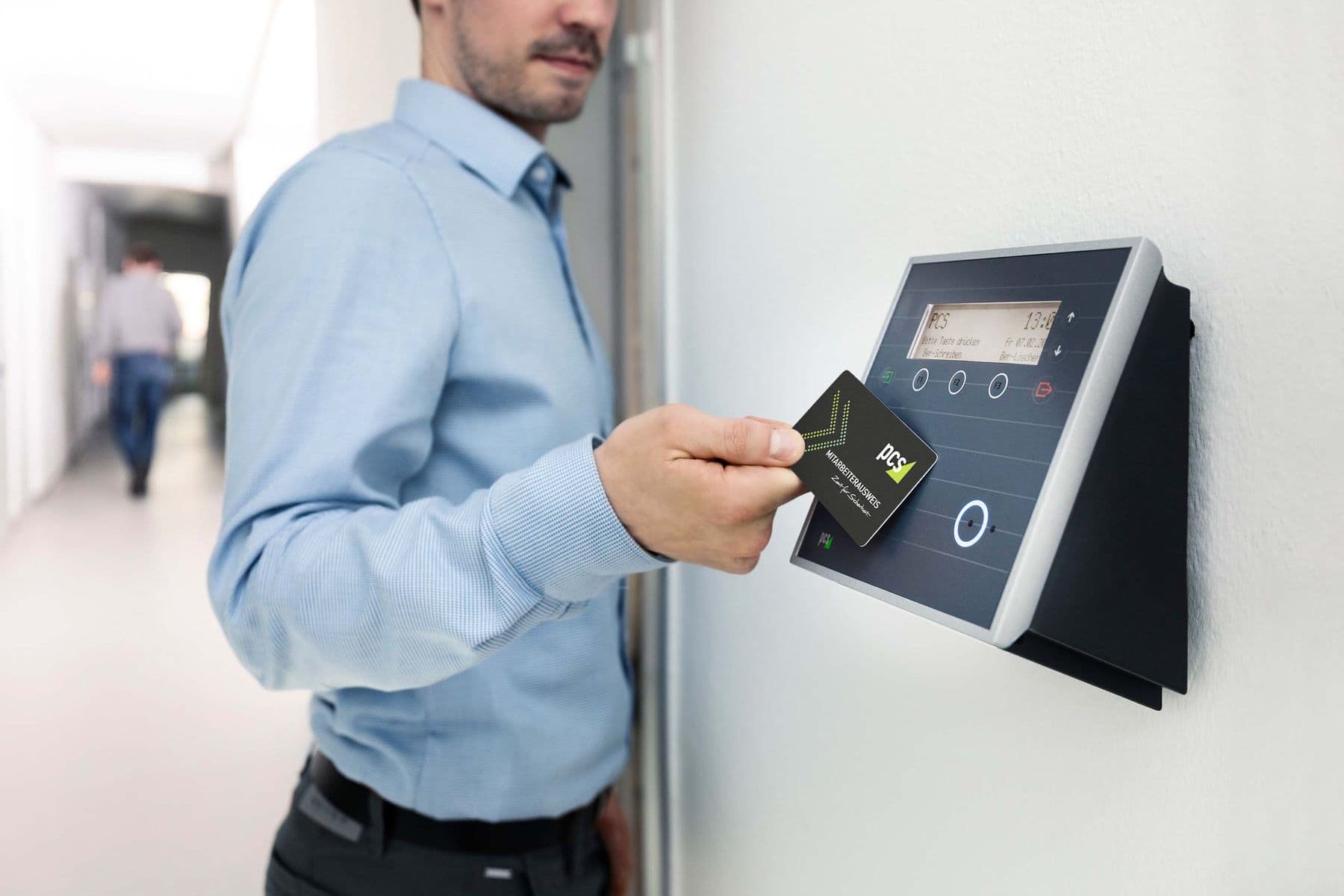
Buildings24/03/2026
A card verifies the card, Face ID verifies the person. This post compares the two methods on operational criteria at a factory gate and shows how to use both on one system.
Read more