
Sports02/09/2026
Booking by phone and notebook compared with a booking platform
A stage-by-stage comparison of manual booking and a booking platform, from checking free slots and taking deposits to reconciliation and merchandise.
Read moreSports
Published 29/04/2026
Six steps to bring a multi-pitch venue onto Sol26 Sport ERP, from surveying the site to building the pitch map and tracking fill rate.
A venue usually has several pitches of different types, each with its own schedule. If this information lives only in the owner's head or a notebook, players struggle to see which pitch is free and staff can easily assign the wrong slot.
This post sets out the steps to configure a venue on Sol26 Sport ERP, from the site survey to building the map, setting prices, assigning staff permissions and monitoring operations.
Before entering any data, record the number of pitches, pitch types, time slots and current services at the venue. This is the first step in the Sol26 Sport ERP deployment process and it determines how accurate the pitch map will be.
The owner enters the business details, where the business or venue name is mandatory, along with the tax code. The owner then selects the venue's location and pins it on the map so players can find it by area.
Newly registered venues are approved by the operations team, and there is a separate verified badge review. Complete business details from the start help avoid delays in approval.
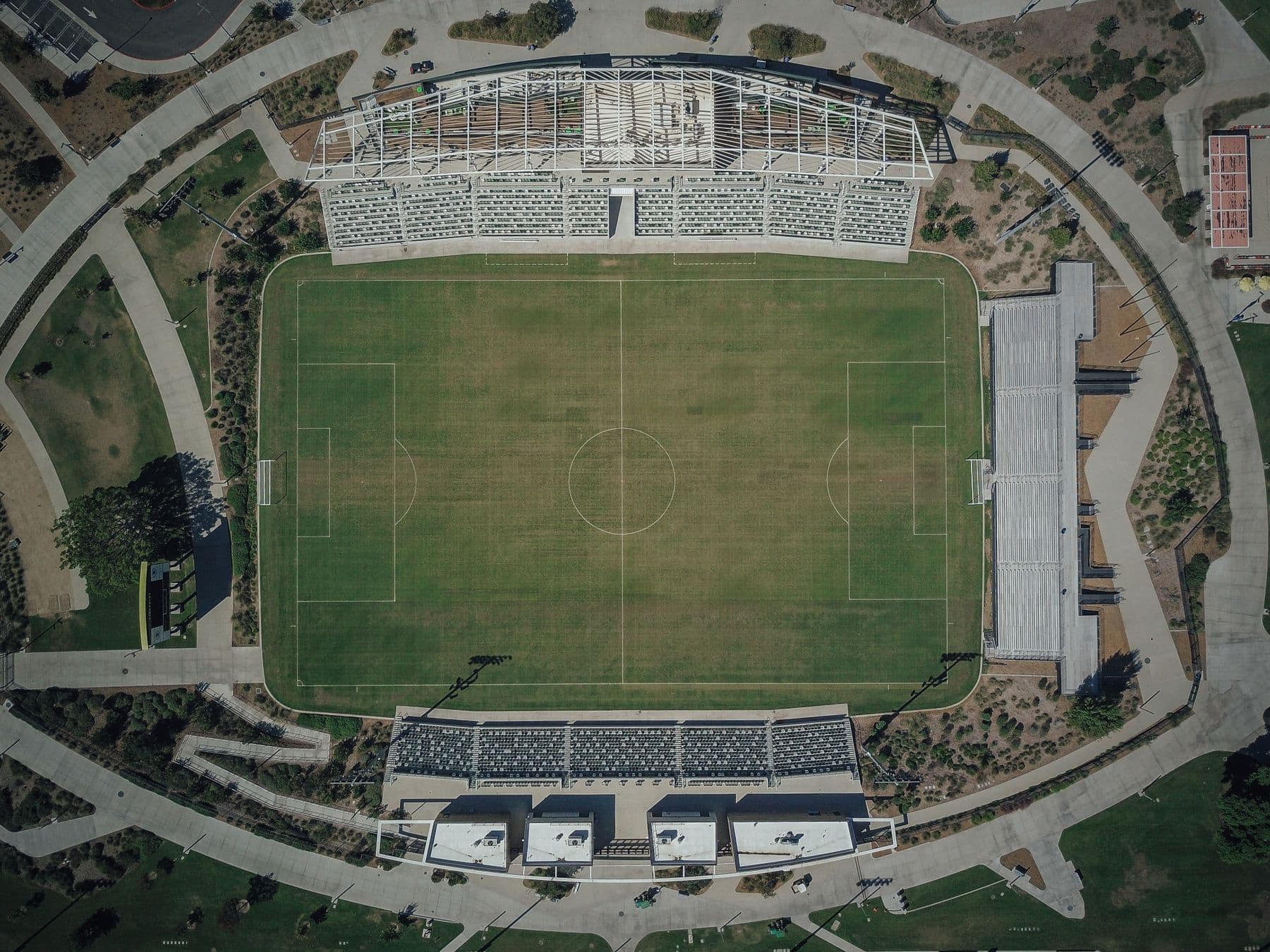
The venue owner app is designed with a drag-and-drop grid map. The owner creates each pitch, names it and drags its tile into a position matching the real layout. Each pitch is given a type, with 5, 7 or 9-a-side for football.
The same map is shared between owners and players. In the player app it mirrors the real site and distinguishes bookable pitches from unavailable ones, so players choose a specific pitch rather than just a general time slot.
Once the map is in place, the owner sets prices by time slot. Prices appear on the venue information screen alongside photos, name, tags, rating and location, and are used to calculate the total when a player books.
At checkout, players see the total before and after any voucher. Entering complete prices from the start means staff do not have to quote prices by phone for each customer.
The owner adds, edits and removes staff records and grants permissions to each person. Staff management is also designed to cover timekeeping and staff activity history.
Staff use a separate app to see pitch status by booked and free slots, sell goods at the venue and receive confirmations from the owner account. This split keeps map and price configuration with the owner account.
After configuration, staff are trained on the app. Once the venue is live, the owner tracks pitch fill rate, adds services and runs campaigns for regular customers.
Metrics worth tracking include average hours used per day, week and month, and pitch fill rate. These metrics reflect directly how well the venue is being used.
Sol26 Sport ERP
Pitch booking and venue management
Sports02/09/2026
A stage-by-stage comparison of manual booking and a booking platform, from checking free slots and taking deposits to reconciliation and merchandise.
Read more
Sports21/07/2026
Sales and rental item lists, stock and merchandise revenue kept separate from pitch fees, and what each service plan allows.
Read more
Sports09/06/2026
Team profiles, team search filters, deposit-backed matches and match chat are designed to let players find opponents and book pitches in the same app.
Read more